Home Assistant Integration
WatchWarden provides a custom integration and a Lovelace dashboard card for Home Assistant that exposes your Docker container update status as sensors and lets you trigger checks, updates, and rollbacks from HA automations.
Prerequisites
- A running WatchWarden controller accessible from your Home Assistant instance
- An API token created in Settings → API Tokens in the WatchWarden UI
Setup
1. Create an API token
In the WatchWarden web UI:
- Go to Settings → API Tokens
- Click Create Token
- Name it
Home Assistant - Set expiration as desired (or leave at "Never")
- Copy the token — it is shown only once
2. Install the integration
Install the watchwarden-ha-integration:
- HACS (coming soon) — add as a custom repository
- Manual — copy
custom_components/watchwarden/into your HA config directory
3. Configure in Home Assistant
- Go to Settings → Devices & Services → Add Integration
- Search for WatchWarden
- Enter your controller URL and API token
- Select which agents to monitor (if you have multiple)
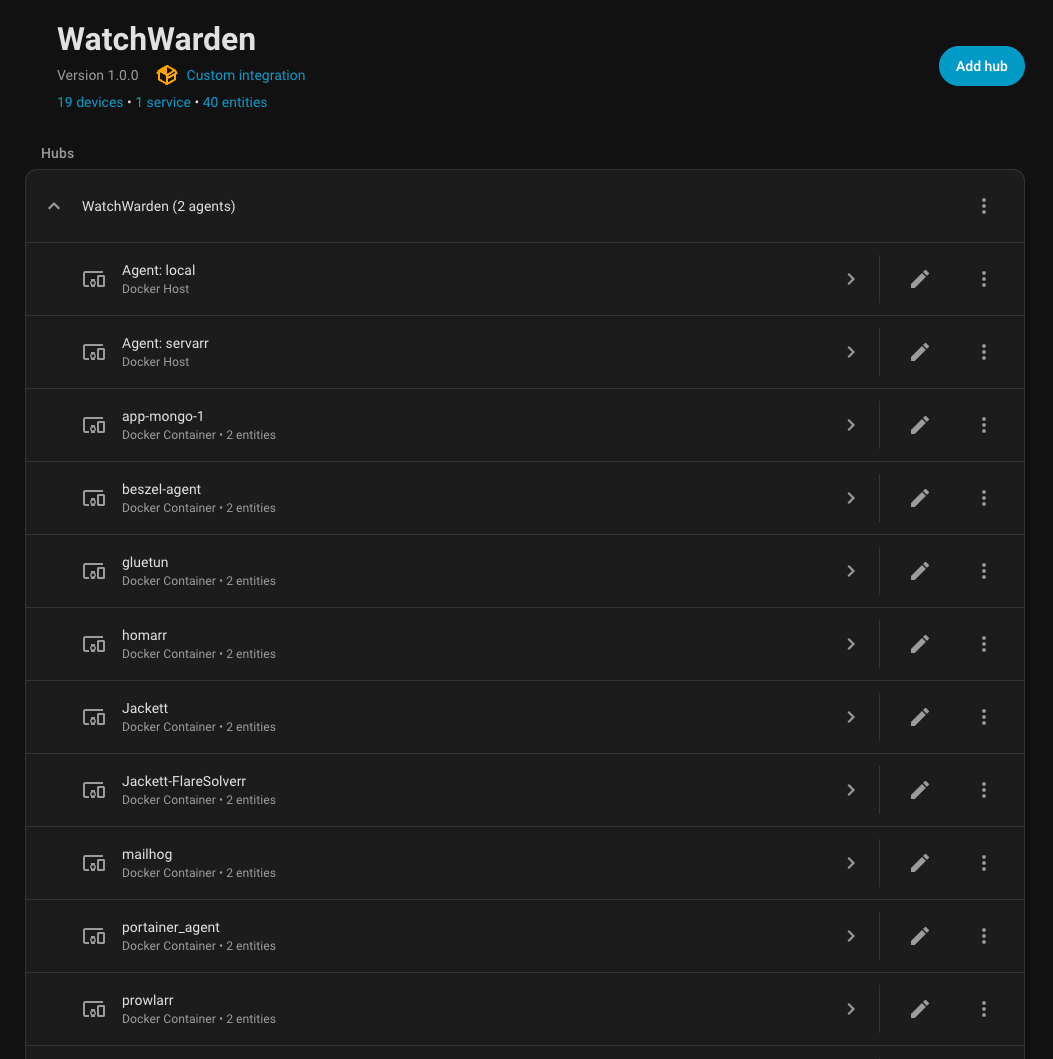
The integration auto-discovers all agents and their containers.
4. Install the dashboard card
Install the watchwarden-custom-card:
- Build:
npm install && npm run build - Copy
dist/watchwarden-card.jsto/config/www/ - Add as Lovelace resource:
/local/watchwarden-card.js(type: module)
What the Integration Provides
Devices & Entities
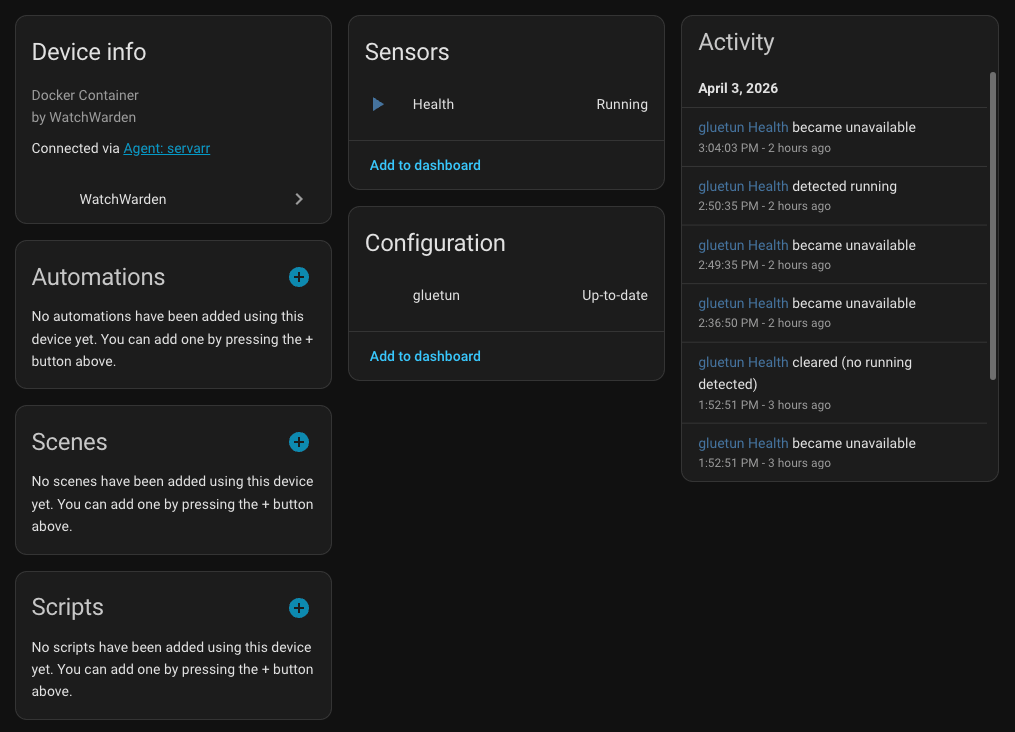
Each agent appears as a parent device ("Docker Host"), with its containers as child devices. This means HA asks for area per agent, not per container.
Sensors
| Entity | Description |
|---|---|
sensor.watchwarden_containers_total | Total monitored containers |
sensor.watchwarden_updates_available | Containers with pending updates |
sensor.watchwarden_unhealthy_containers | Containers with non-healthy status |
sensor.watchwarden_agents_online | Connected agents |
sensor.watchwarden_agents_total | All registered agents |
sensor.watchwarden_last_check | Timestamp of last update check |
Update Entities
One update.<container_name> entity per Docker container showing:
- Current version (image tag or digest)
- Whether an update is available
- "Install" action to trigger the update
Health Binary Sensors
One binary_sensor.<container_name>_health per container:
- ON = healthy or no healthcheck configured
- OFF = unhealthy
Services
| Service | Description |
|---|---|
watchwarden.check_all | Trigger update checks on all agents |
watchwarden.check_container | Check specific container(s) by ID |
watchwarden.update_container | Apply updates to specific container(s) |
watchwarden.rollback_container | Rollback specific container(s) |
Dashboard Card
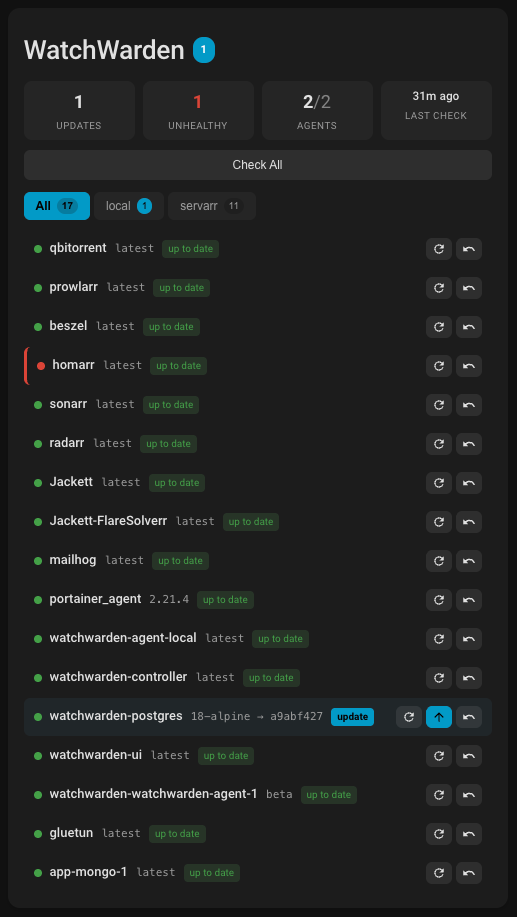
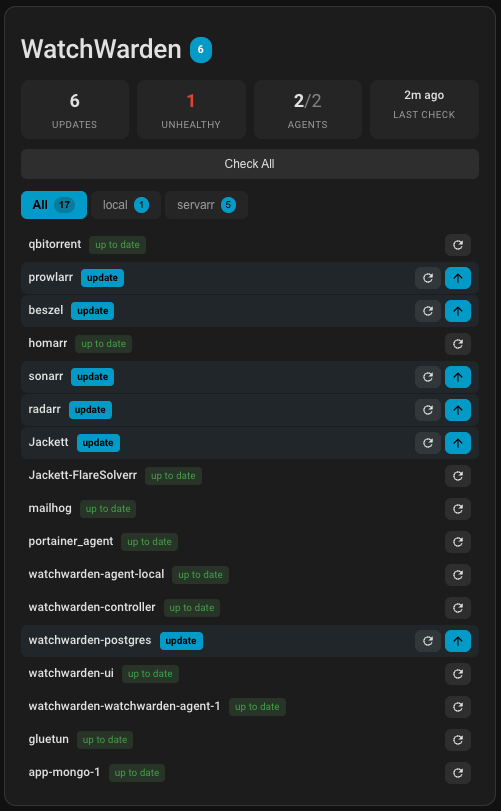
The watchwarden-card provides a compact dashboard view with summary stats, per-container status, and action buttons.
Regular mode
Shows container versions and update status with full details:
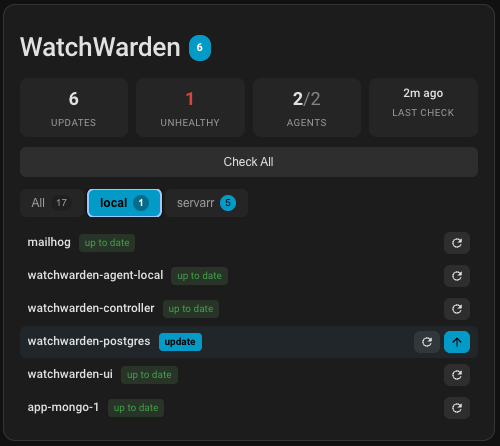
Compact mode with agent tabs
When you have multiple agents, the card shows tabs to filter by host. Compact mode uses a denser row layout:
Visual editor
Configure the card from the HA UI — auto-discovers all WatchWarden containers with checkboxes:
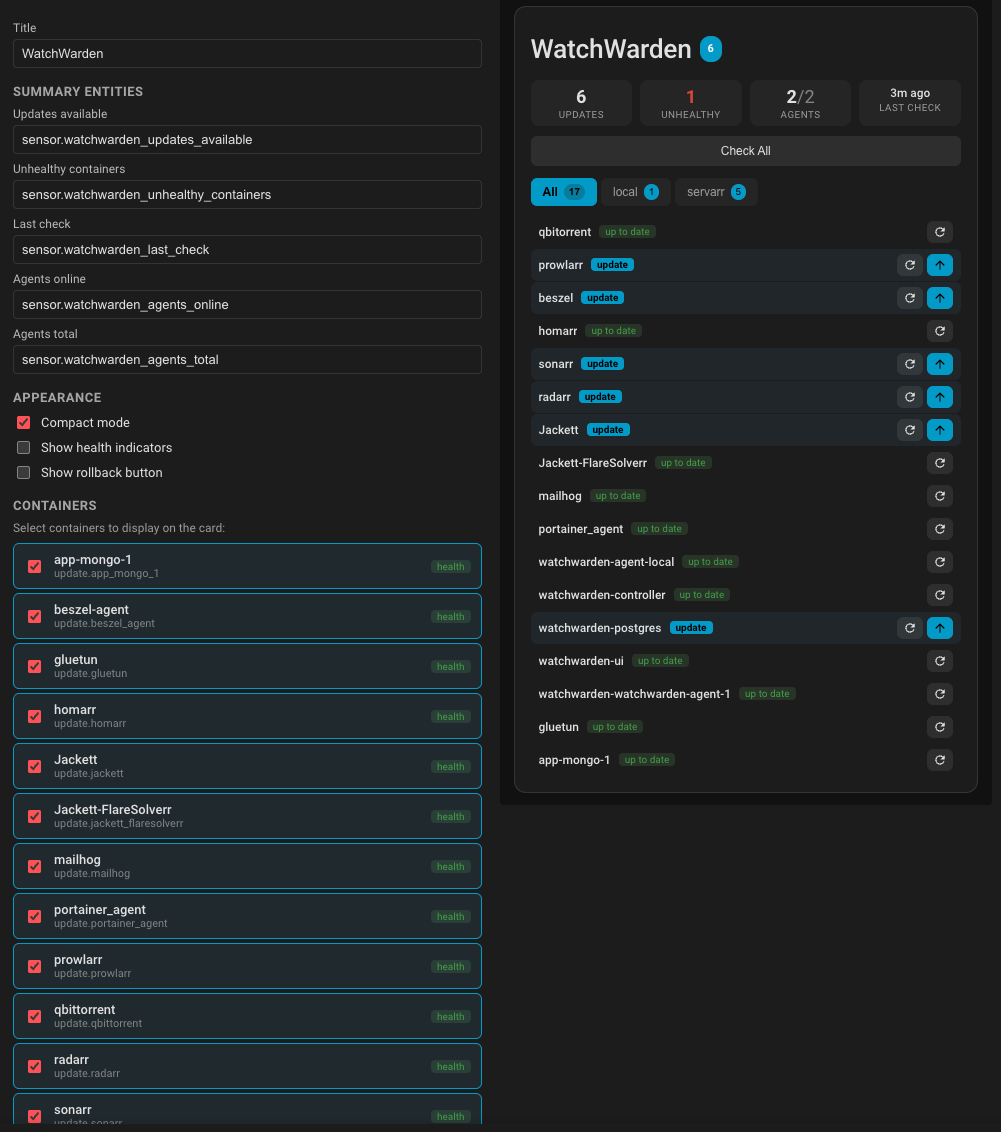
Card configuration
type: custom:watchwarden-card
title: WatchWarden
summary_entities:
  containers_with_updates: sensor.watchwarden_updates_available
  unhealthy_containers: sensor.watchwarden_unhealthy_containers
  last_check: sensor.watchwarden_last_check
  agents_online: sensor.watchwarden_agents_online
  agents_total: sensor.watchwarden_agents_total
containers:
  - name: Traefik
    update_entity: update.traefik
    health_entity: binary_sensor.traefik_health
  - name: Sonarr
    update_entity: update.sonarr
    health_entity: binary_sensor.sonarr_health
appearance:
  compact: false
  show_health: true
  show_rollback: true
Example Automation
automation:
  - alias: "Notify on new Docker updates"
    trigger:
      - platform: state
        entity_id: sensor.watchwarden_updates_available
    condition:
      - condition: numeric_state
        entity_id: sensor.watchwarden_updates_available
        above: 0
    action:
      - service: notify.mobile_app
        data:
          title: "Docker updates available"
          message: >
            {{ states('sensor.watchwarden_updates_available') }}
            container(s) have updates available.
Reconfiguration
To change which agents are monitored:
- Go to Settings → Devices & Services → WatchWarden
- Click the three dots menu → Reconfigure
- Select/deselect agents and save
API Reference
The integration communicates with WatchWarden via the Integration API. If you are building a custom integration or script, refer to that page for the full HTTP contract, authentication details, and endpoint documentation.
Troubleshooting
| Issue | Solution |
|---|---|
401 Unauthorized | Token is invalid, revoked, or expired. Create a new one in the WatchWarden UI. |
403 Forbidden | Token scope is too narrow. Use full scope for HA. |
| Connection refused | Verify the controller URL is reachable from the HA host. Check firewall rules. |
| Sensors not updating | The integration polls every 60 seconds. Check HA logs for errors. |
| Containers show unhealthy after reboot | Wait for the next heartbeat (15s) — health status updates with each agent heartbeat. |
| Duplicate devices | Ensure you're running the latest integration with stable_id support. Delete old devices and restart HA. |